If you grew up during the mid-2000s, there is a high probability that the Xbox 360 was the centerpiece of your living room. The green glow of the power button, the iconic dashboard sounds, and the legendary library of games like Gears of War, Halo 3, and Fable II created memories that stay with us forever. However, hardware eventually ages, and keeping an original console running in the 2020s can be a chore. This is where emulation comes into play. While the Xenia emulator is a technical masterpiece that allows us to play these classics on a PC, it isn’t always the most user-friendly piece of software. If you have ever tried to manually edit a text file just to change your screen resolution or struggled to find where your save files are buried, you know the frustration. This is exactly why Xenia Manager exists. It acts as the brain and the face of your emulation setup, turning a complex technical tool into a beautiful, organized console experience on your computer.
What Exactly is Xenia Manager?
To understand Xenia Manager, you first have to understand what Xenia itself is. Xenia is an open-source research project that aims to emulate the Xbox 360 on modern Windows PCs. It is incredibly fast and compatible, but the base version of the emulator is very “bare bones.” When you download the standard version, you get an executable file and a text-based configuration file. There is no built-in menu to look at your game covers, and there is no “check for updates” button. Xenia Manager is a third-party tool, often referred to as a “frontend,” that wraps around the emulator. It provides a graphical user interface (GUI) that allows you to manage your games, update the emulator versions automatically, and change settings with a few clicks of a mouse instead of typing lines of code.
I remember the first time I tried to use Xenia without a manager. I had to create desktop shortcuts for every single game and manually change the config file every time I wanted to switch from a heavy game like Red Dead Redemption to a lighter arcade title. It was a nightmare. When I finally installed Xenia Manager, it felt like I had upgraded from an old DOS computer to a modern smartphone. Everything was visual, easy to find, and significantly more stable because the manager ensures your paths and files are always where they need to be. It essentially takes the “work” out of emulation so you can spend more time actually playing the games.
Key Features That Make Life Easier
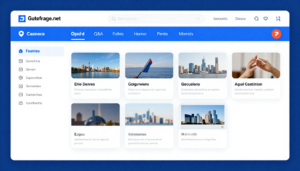
The most striking feature of Xenia Manager is the visual library. Instead of looking at a folder full of file names like “4541080F.iso,” the manager scans your games and downloads the official box art. It turns your game folder into a digital shelf. You can see the covers of your favorite games, which makes the whole experience feel premium and professional. For someone like me who has a library of over fifty Xbox 360 titles, being able to scroll through a visual menu is a game-changer. It eliminates the guesswork and makes the setup look great on a big-screen TV if you are building a home theater PC.
Another massive benefit is the automated update system. Xenia moves fast, with developers frequently releasing updates for both the “Master” and “Canary” builds. The Master build is generally more stable, while the Canary build contains experimental fixes that allow specific games to run better. Keeping track of these updates manually is a hassle. Xenia Manager handles this for you. It can check for the latest versions on GitHub and install them without you having to move files around or lose your settings. This ensures you are always playing on the most optimized version of the emulator, which is crucial for games that are notoriously difficult to run.
Setting Up Xenia Manager Like a Pro
Getting started with Xenia Manager is relatively straightforward, but there are a few things you should know to avoid common pitfalls. First, you need to ensure your PC is up to the task. Xbox 360 emulation is very demanding on your CPU and GPU. Once you have a decent gaming rig, you can download the Xenia Manager executable. I always recommend placing the manager in a dedicated folder on a drive with plenty of space. When you first launch it, the software will ask you to point it toward your game library. This is just a folder on your hard drive where you keep your ISO or XEX files.
The magic happens during the initial configuration. The manager will ask if you want to install Xenia Canary or Xenia Master. If you are a beginner, I recommend installing both. The manager allows you to toggle between them easily. Once the emulator files are downloaded through the manager, you don’t ever need to touch the actual emulator folders again. You can do everything from the manager interface. One tip I’ve learned from years of doing this is to always run the manager as an administrator. Windows can sometimes be picky about third-party apps moving files around in the “Program Files” folder, so running as an admin prevents those annoying permission errors.
Optimizing Performance Without the Headache
The most intimidating part of emulation is usually the settings menu. In the raw version of Xenia, you have to open a “xenia.config.toml” file in Notepad and search for specific words to change things. If you make a typo, the emulator might not even start. Xenia Manager solves this by providing a clean settings tab with checkboxes and sliders. For example, if you want to play Gears of War in 4K resolution instead of the original 720p, you can simply find the “Draw Resolution Scale” option in the manager and set it to 2x or 3x. It handles the backend code changes for you.
I personally spent hours trying to fix the “yellow tint” issue in certain games by editing text files, only to find that Xenia Manager had a simple toggle for it. You can also manage things like V-Sync, which is important if you are experiencing screen tearing, or adjust the “GPU-allow-workarounds” setting which can help fix graphical glitches in specific titles. Having these options presented in plain English makes the emulator accessible to everyone, not just the tech-savvy crowd. It allows you to experiment with settings to see what works best for your specific graphics card without the fear of breaking the software.
Managing Your Digital Collection
Organization is the soul of a good gaming experience. When you point Xenia Manager to your game folder, it does a “deep scan.” This means it looks inside the game files to identify exactly what the game is. One of the coolest things about the Xbox 360 was the variety of titles, from massive triple-A blockbusters to small Indie games. Xenia Manager categorizes these perfectly. You can even add “Custom Launch Arguments” for specific games. This is useful for games that require a specific patch or a different rendering mode to work correctly.
A personal piece of advice for those starting out: keep your game files organized in subfolders. While the manager is great at scanning, it works best when your library isn’t a chaotic mess of loose files. If you have DLC or title updates, the manager provides a specific way to install them. Instead of trying to figure out which “content” folder a 360 update belongs in, you can often use the manager’s interface to “Install Content,” and it will place the files in the correct directory for the emulator to see. This is a lifesaver for games like Fallout: New Vegas or The Elder Scrolls V: Skyrim where DLC adds so much to the experience.
The Debate: Xenia Master vs. Xenia Canary
One question that pops up in the community constantly is which version of the emulator to use. The “Master” branch is the official, stable release. It is tested thoroughly, but it doesn’t get updated as often. The “Canary” branch is where the “magic” happens. It includes community-contributed patches that can unlock frame rates, fix lighting issues, or enable support for games that don’t work on the Master build.
Xenia Manager is the best tool for managing this duality. In the settings, you can choose which version of Xenia you want to be the “default.” However, if you have one specific game that only works on Canary, you can set a per-game override. This means when you click “Play” on Halo 3, it might open with the Master build for stability, but when you click on Fable II, it automatically launches with the Canary build because that version has a specific fix for the ground textures. This level of automation is why I never go back to the standard emulator launcher. It feels like having a personal assistant who knows exactly how each of your games should be played.
Staying Within Legal and Ethical Boundaries
As an emulation enthusiast, I feel it is important to touch upon the “how” and “why” of getting your games. Emulation is a legal gray area in many parts of the world, but the general consensus among the community is that you should always own the games you are playing. The best way to use Xenia Manager is by “ripping” your own physical discs using a compatible Xbox 360 disk drive or a modded console. This way, you are preserving your own library for the future.
Preservation is the key word here. Hardware dies, and discs rot. By using Xenia Manager to curate a high-quality digital library of the games you already bought, you are ensuring that you can still play them twenty years from now. I take pride in my digital collection, and I see Xenia Manager as a digital museum of my gaming history. It isn’t about “piracy”; it is about the freedom to play the software you own on the hardware you choose, with better graphics and faster loading times than the original console could ever dream of.
Troubleshooting and Community Support
No software is perfect, and you will eventually run into a game that crashes or a library that won’t load. The first thing to check is always the “Paths” tab in Xenia Manager. If you moved your game folder to a different drive, the manager will lose track of them. Simply updating the path usually fixes the “missing games” issue. If a game crashes, I always suggest checking the Xenia Compatibility Wiki. The manager actually makes this easy by allowing you to quickly access the configuration settings to try the recommended fixes found on the wiki.
The community behind Xenia and Xenia Manager is incredibly active. If you find a bug in the manager, the developers are usually very responsive on platforms like GitHub. My experience has been that if you provide a clear description of your problem, someone will help you. This sense of community is what makes PC gaming so special. We aren’t just consumers; we are part of an ecosystem that constantly improves the tools we use.
Final Thoughts on the Xenia Experience
Xenia Manager is more than just a simple launcher. It is the bridge between a complex piece of engineering and the end-user who just wants to play their favorite games. It brings the Xbox 360 experience into the modern era with high-definition visuals, automatic updates, and a beautiful interface. Whether you are a hardcore techie or a casual gamer looking to relive your childhood, this tool is indispensable. It removes the barriers to entry and makes Xbox 360 emulation accessible to everyone. In a world where official backward compatibility is often limited or locked behind subscription services, tools like Xenia Manager give the power back to the players.
Conclusion
In summary, Xenia Manager is the definitive way to experience Xbox 360 emulation on Windows. It streamlines the technical hurdles, organizes your library into a beautiful visual display, and ensures that you are always running the most optimized version of the emulator. By using this tool, you can enjoy classics like Red Dead Redemption or Lost Odyssey in 4K resolution with stable frame rates. While the setup requires a bit of initial effort, the long-term payoff is a seamless, console-like experience on your PC.
FAQ
1. Is Xenia Manager free to use?
Yes, Xenia Manager is an open-source tool and is completely free to download and use. Always ensure you are downloading it from the official GitHub repository to avoid any malicious software.
2. Do I need a powerful PC for Xenia Manager?
The manager itself is very lightweight, but the emulator it runs (Xenia) requires a solid gaming PC. You generally need a modern CPU (like a Ryzen 5 or Intel i5) and a dedicated GPU that supports Vulkan or DirectX 12.
3. Can I use a controller with Xenia Manager?
Yes! Xenia is designed to work perfectly with Xbox controllers. Since you are on Windows, an Xbox One or Series X/S controller will work natively without any extra setup.
4. Will my save games be compatible between Master and Canary builds?
Generally, yes. Save games are usually stored in a specific folder in your “Documents” or within the Xenia folder itself. Xenia Manager helps keep these folders consistent so you can switch between emulator versions without losing progress.
5. How do I add new games to the manager?
You simply place your game files (ISO or XEX) into your designated games folder and then click the “Refresh” or “Scan” button within Xenia Manager. The software will automatically find the new titles and fetch their box art.
6. Does Xenia Manager support online multiplayer?
As of now, Xenia’s online capabilities (Xenia Net) are very limited and experimental. While the manager can help you configure these settings, don’t expect a full Xbox Live experience just yet.